Deployment
Docker
A Docker deployment guide leveraging Compose
This deployment method has the following prerequisites:
- Access to Docker Engine
- Docker Compose v2, built-in modern versions of the
dockerCLI - Access via Control Plane to an existing NATS system
Preparation
- Prepare the NATS access URL and make sure the NATS system is reachable from the deployment location.
Enable Schema Registry in Control Plane
Navigate to the system page, click on the Settings page and under the Schema Registry section do the following:
- Enable it
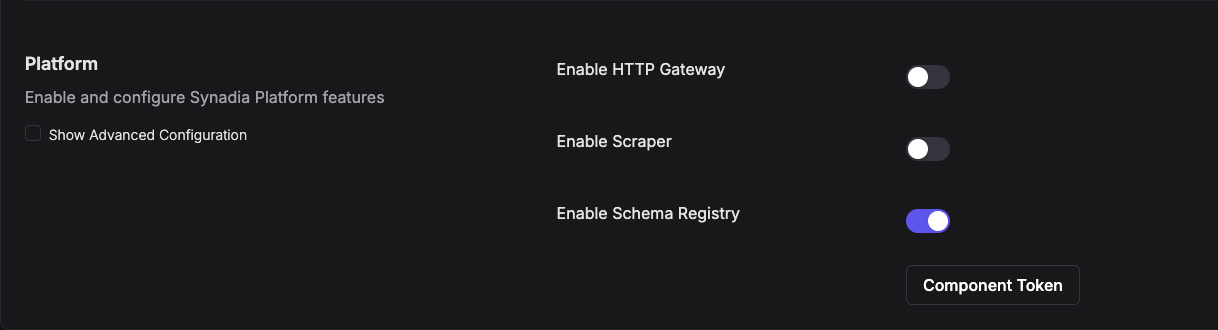
- Click on Component Token and copy the token to your clipboard. We'll need it for docker compose
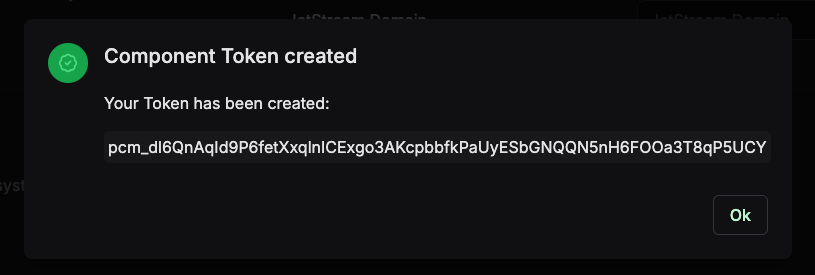
- Click the
Submitbutton at the top.
Login to registry
Using the registry credentials you were given, login to:
docker login registry.synadia.io
Docker Compose file
Create a file called docker-compose.yaml with the following settings:
services:
  schema-registry:
    image: registry.synadia.io/schema-registry:latest
    environment:
      SR_PLATFORM_CONTROL_PLANE_URL: '<CONTROL_PLANE_SERVER_URL>'
      SR_PLATFORM_TOKEN: '<PASTE_TOKEN_FROM_CONTROL_PLANE_HERE>'
    command:
      - 'platform'
| Environment Variable | Usage |
|---|---|
SR_PLATFORM_CONTROL_PLANE_URL | URL of the Control Plane instance - The UI base URL e.g https://control-plane:8080 - The schema registry will access the REST API to configure its assets. |
SR_PLATFORM_TOKEN | A Platform token from Control Plane - Used to authenticate against the Control Plane API |
SR_NATS_SERVER_URL | The NATS Server or cluster URL - Optional - By default obtained from Control Plane - Override if schema registry needs to use a URL different from the one the Control Plane sees. This MUST be the same NATS system though as attached to Control Plane. |
Start the containers
Run the following command to bring up the stack.
docker compose up -d
Upgrade the image
To upgrade Control Plane's image and restart, use the following commands:
docker compose pull schema-registry
docker compose up -d
Stop the containers
docker compose down