

Protect
Config server in the UI
This guide shows how to connect the protect UI to a running configuration server and managed gateway. It assumes you have the fleet running from the CLI walkthrough.
Starting the UI
Generate a minimal UI config with no pre-configured gateway connections.
$ protect ui setup ./ui
$ protect ui start -c ui/config.yaml
Connecting to the configuration server
Navigate to Connect in the sidebar. Enter the config server's external NATS URL with API account credentials:
| Field | Value |
|---|---|
Type | Config Server |
URL | nats://localhost:4333 |
Auth Type | Username / Password |
Username | api |
Password | api |
Signer Key | contents of bundle-signer.nk |
Metrics URL | http://localhost:8181/metrics |
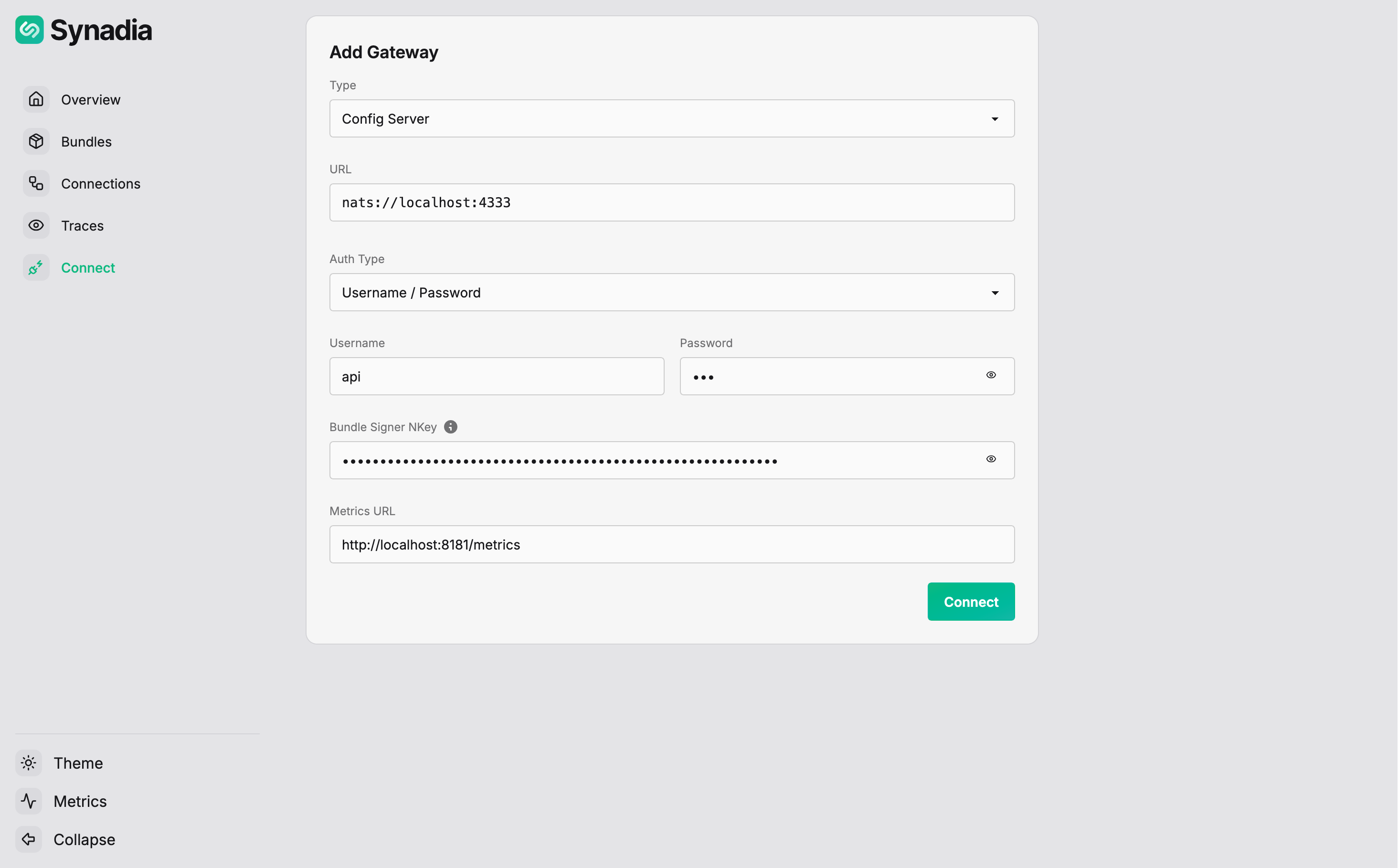
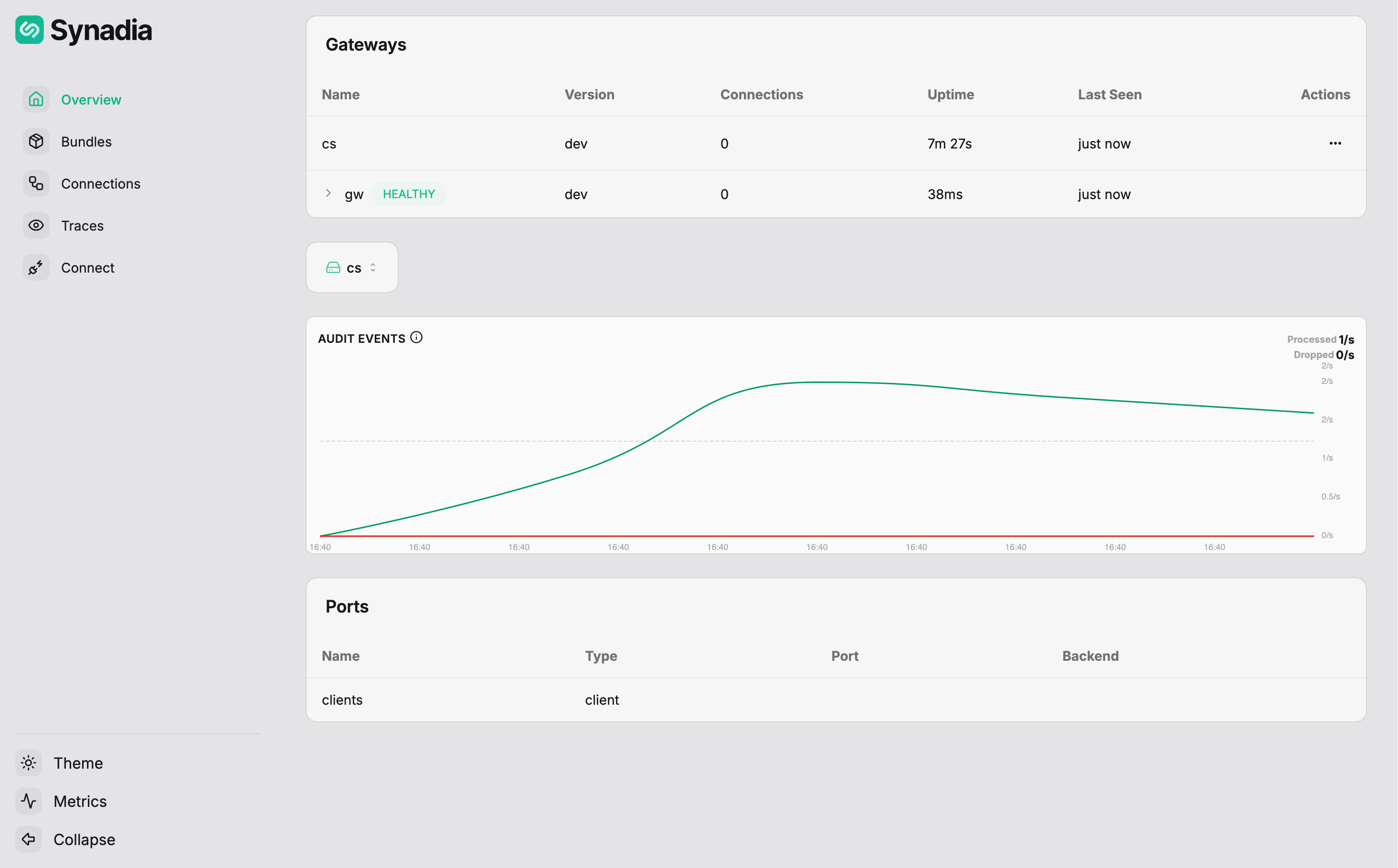
Click Connect. The config server appears in Gateways:
Switching between gateways
The gateway selector dropdown lets you switch between the config server and managed gateways in the fleet:
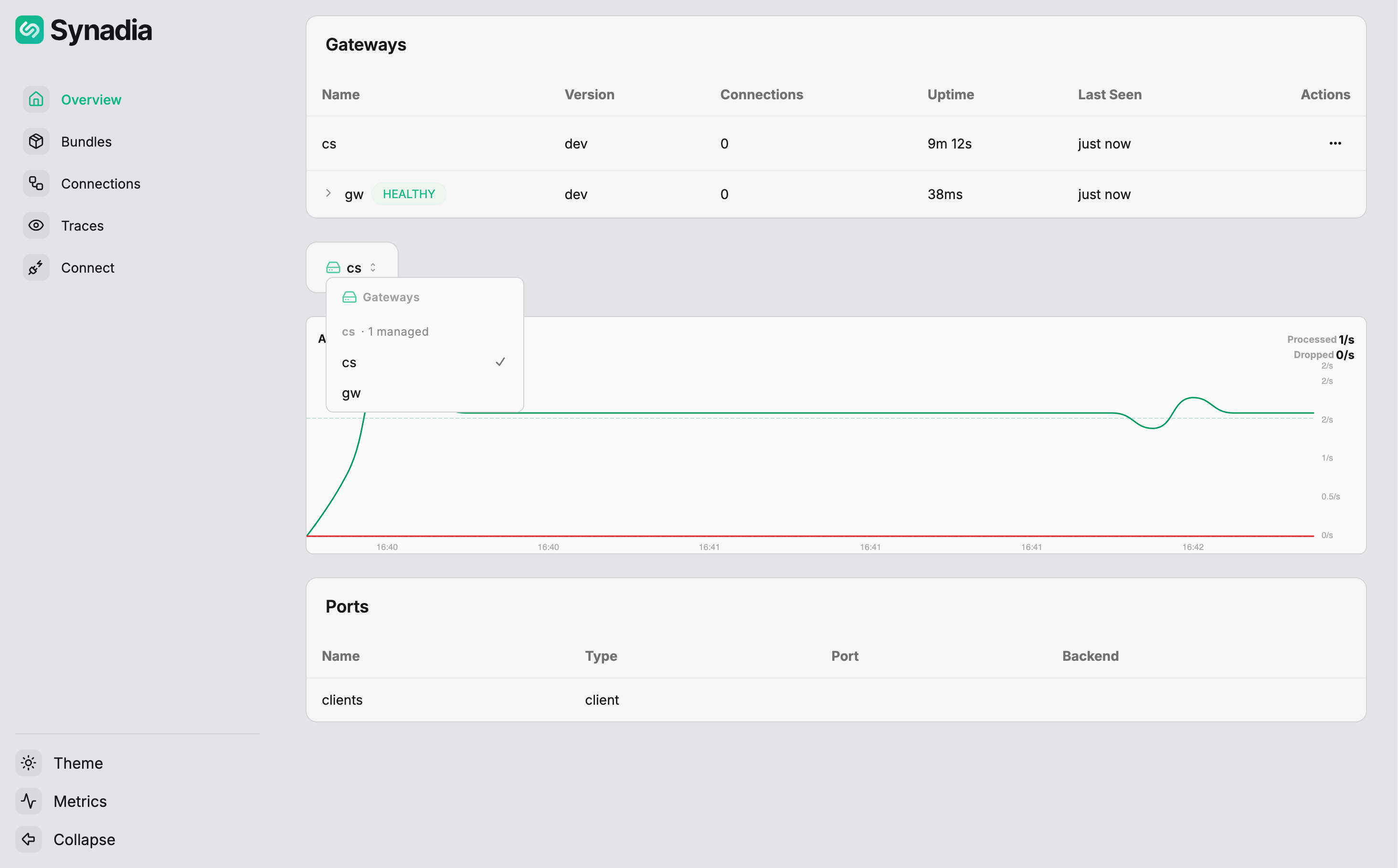
Selecting gw shows the managed gateway's view. However, viewing live gateway details (connections, stats) requires a direct connection to the gateway's management API.
Connecting to the managed gateway
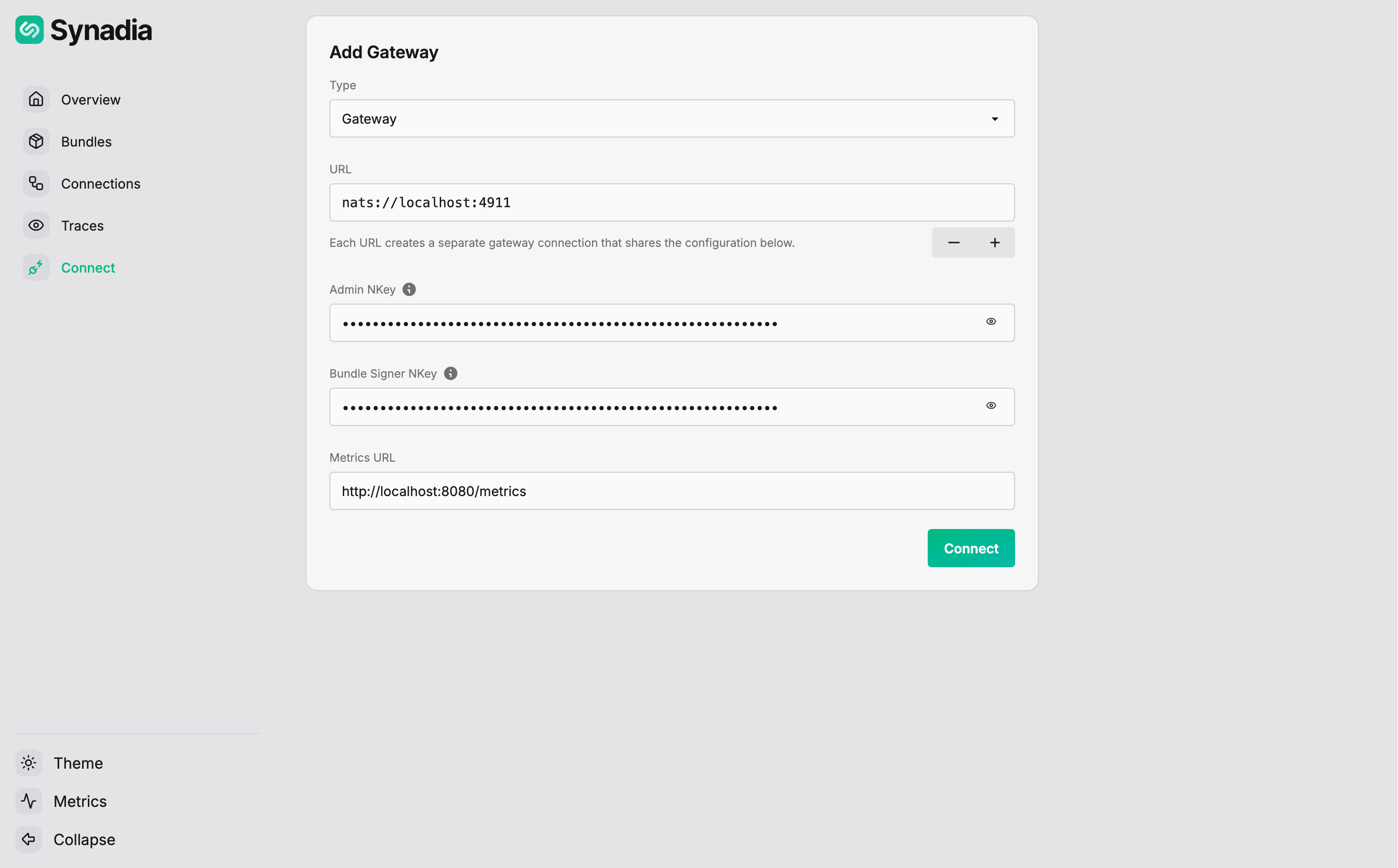
To get full visibility into a managed gateway, add a second connection on the Connect page pointing to the gateway's embedded management port:
| Field | Value |
|---|---|
URL | nats://localhost:4911 |
Auth Type | NKey (or JWT + NKey) |
NKey Seed | contents of admin.nk |
Signer Key | contents of bundle-signer.nk |
Metrics URL | http://localhost:8080/metrics |
Now selecting gw in the Overview's gateway dropdown shows full gateway details including loaded rules:
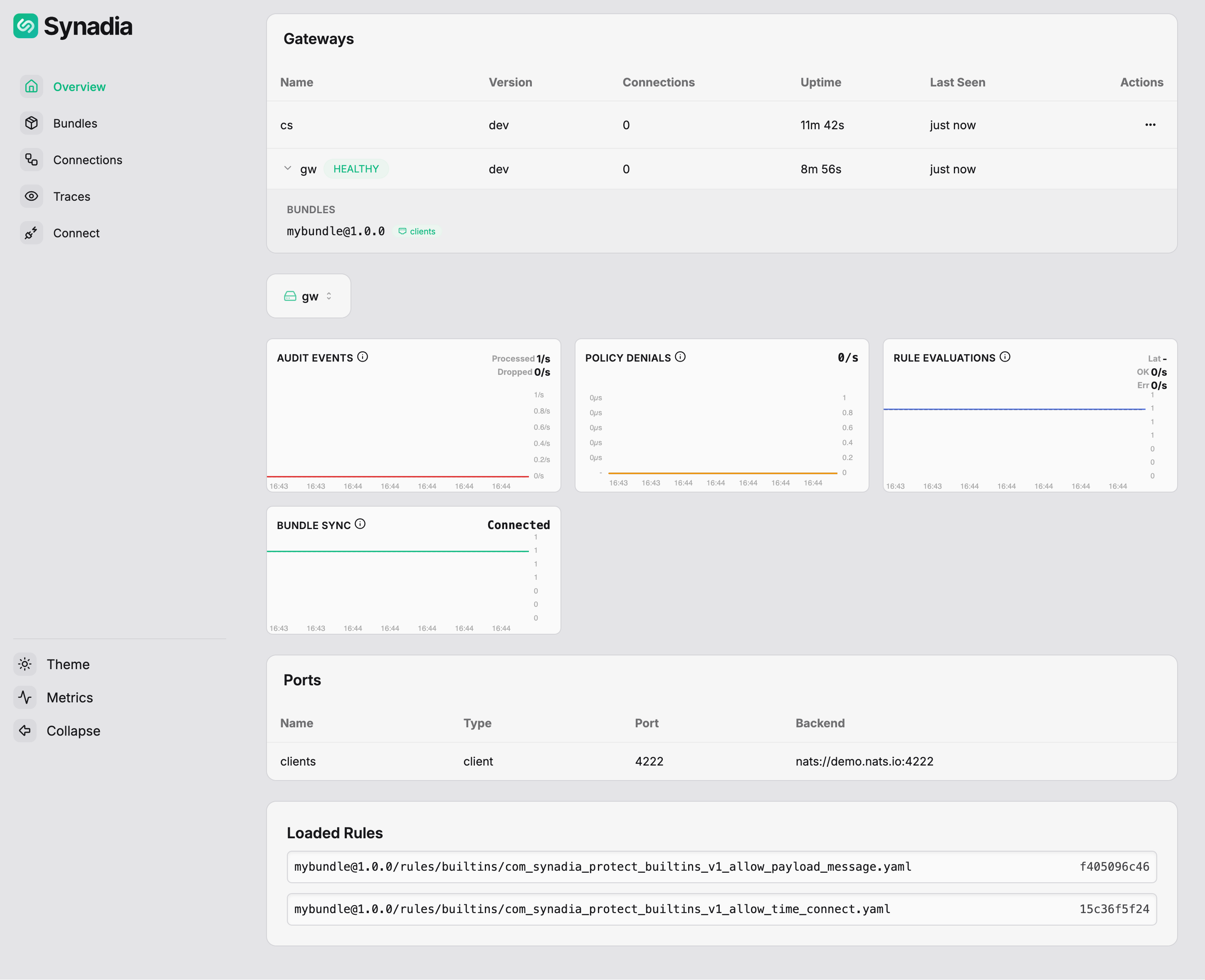
The gateway shows the mybundle@1.0.0 rules that were deployed via the config server and automatically mirrored to the managed gateway.
Summary
The UI supports two connection patterns for fleet management:
| Connection | Purpose | What you can see |
|---|---|---|
Config server (nats://localhost:4333) | fleet management | fleet status, bundle management, trace profiles |
Managed gateway (nats://localhost:4911) | direct gateway access | live connections, stats, gateway info, loaded rules |
Both connections can be active simultaneously, and the gateway selector lets you switch between views.
Once connected, bundle management, trace profiles, and connection management work the same as with a standalone gateway — see the bundles UI, traces UI, and inspecting docs.